
How to make a 60, 120 or 144 fps wallpaper from a 30 fps video
Most videos are 24 or 30 frames per second, but many monitors refresh 120, 144 or even 165 times a second. On a fast screen a 30 fps wallpaper can look a little choppy, especially slow panning shots. Frame interpolation fixes that.
Duplicated frames vs real in-between frames
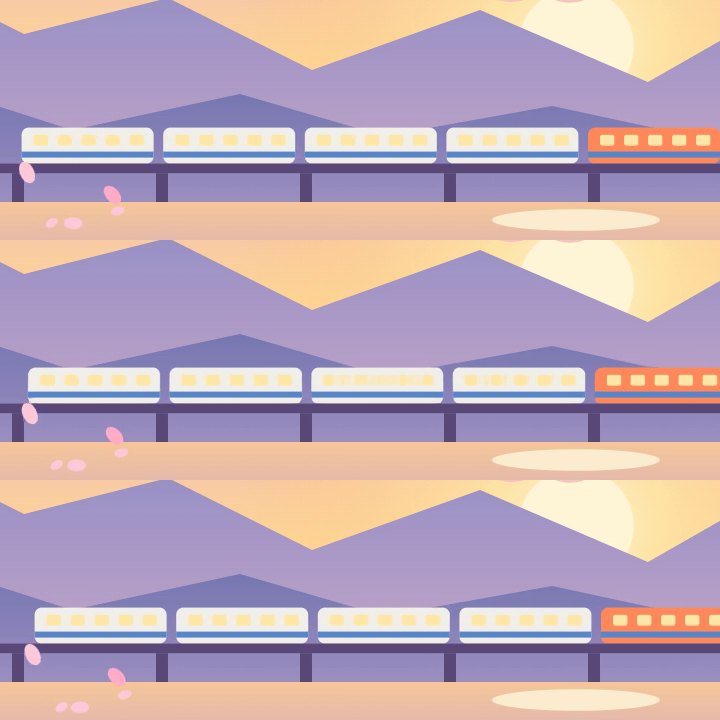
Simply converting 30 fps to 120 fps repeats each frame four times: the file says 120 fps but the motion is exactly as choppy as before. Frame interpolation instead works out how everything moves between two frames and draws brand-new frames in between. Wallsmith uses RIFE, an AI model made for this.
Original 30 fps
Wallsmith 120 fps
How to do it in Wallsmith
- Open your clip.
- On the Enhance tab, under Frame rate, pick 60, 120 or 144. If your screen runs at another rate (165 Hz, for example), Wallsmith offers that too.
- Export as usual. Scene cuts are detected and never blended, so a cut stays a clean cut.
Free or Pro? Higher frame rates are part of Wallsmith Pro ($5 once). The free version keeps the original frame rate.
Make sure it plays at full speed
- Wallpaper Engine has its own frame-rate limit in its settings (Performance). Set it at least as high as your wallpaper, or the extra frames are skipped.
- Pick the rate your monitor really runs at. A 144 fps wallpaper on a 60 Hz screen only costs extra GPU time.
- Higher frame rates mean bigger files. 60 fps is a great middle ground for 60 Hz and 120 Hz screens alike.
Try it on your own clip
Wallsmith is free for Windows 10 and 11. Pro is $5 once, for life.