
How to make an ultrawide (21:9 or 32:9) wallpaper from any video
Almost every video is 16:9, but an ultrawide monitor is 21:9 or even 32:9. Set a 16:9 video as your wallpaper and you get black bars, a stretched picture, or a crop that cuts off the part you liked. You can choose exactly how it fits instead.
Your options

- Crop (fill). Fill the whole screen and pick which band of the video stays visible. Best for scenery with nothing important at the very top or bottom.
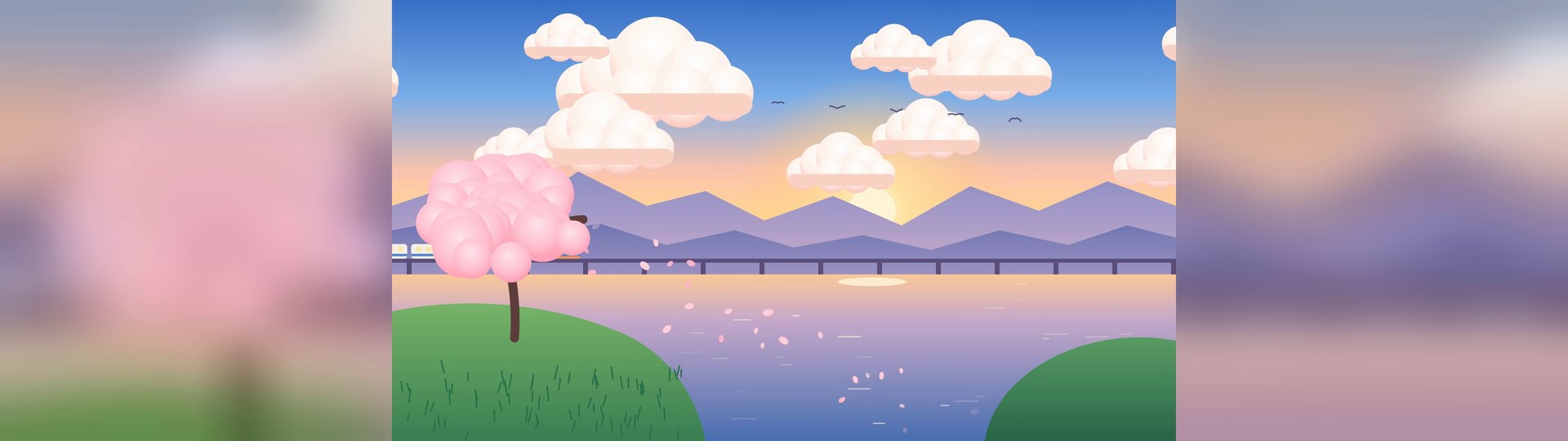
- Whole picture over a blurred fill. Keep the entire video in the middle and fill the sides with a soft, blurred copy of it. Nothing is lost, and it looks far better than black bars.
- Upscale while you're at it. A crop throws away part of the picture, so the rest is enlarged more. AI upscaling keeps the cropped wallpaper sharp on a 3440×1440 or 5120×1440 screen.


How to do it in Wallsmith
- Open your clip. Wallsmith already knows your monitor's shape; it's the Screen choice under Screen shape on the Frame tab. You can also pick 21:9 or 32:9 yourself.
- Under Fit, choose Fill to crop, then drag the box on the preview to choose what stays visible. Use Zoom to go in closer.
- Or choose Blur fill to keep the whole picture, or Fit for plain black bars.
- On the Enhance tab, set Output size to Screen and pick an AI model, then export.
Free or Pro? Cropping for any screen shape is free, up to 1080p / 1200p tall, which includes 2560×1080 ultrawides. 3440×1440, 5120×1440, the Best AI model and Blur fill are part of Pro ($5 once).
Try it on your own clip
Wallsmith is free for Windows 10 and 11. Pro is $5 once, for life.